Cloud, NAS or external drives: where to keep 3 TB
In October, after outages in data centres, some files in one of the major clouds could no longer be downloaded, and the company gave no date for recovery. In our previous article on Habr (in Russian) we ran two polls. 73% of respondents have up to 3 TB of data they cannot afford to lose, and 45% keep family photos on their own server or NAS. So this time the question is different: what does it cost to store 1 to 3 TB so that a single failure does not take all the files with it. We compared eight schemes, from a single cloud to a NAS with a copy in cold storage, and checked which threats each one protects against. Prices were collected on 15 October 2026, and the calculation covers five years. We ran the commands for the encrypted copy on a test bench, and two of them behaved differently from what we expected.
In short, for those who skim:
- A mirror of two drives without snapshots and without a second copy only protects against drive failure.
- For 1 TB, the cloud plus an external drive at home costs 27,940 ₽ over five years, while a NAS with a mirror and no copy at all costs 78,038 ₽.
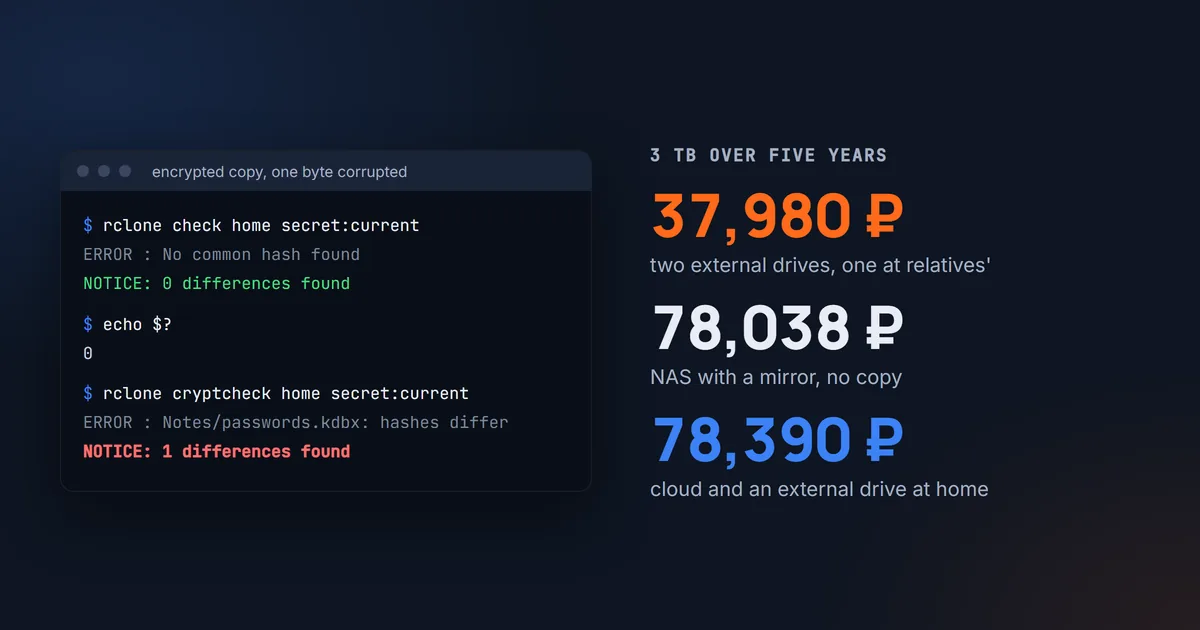
- For 3 TB, the cheapest option is two external drives that swap places: 37,980 ₽. But this scheme depends on your discipline.
- A regular
rclone checkdoes not notice corruption in an encrypted copy, onlycryptcheckfinds it.
How files get lost: five threats to a home archive
First, what we are protecting against. We picked out five threats and found numbers for each.
Drive failure. Backblaze monitors hundreds of thousands of drives in its data centres and publishes failure statistics every quarter. According to its Q2 2026 report, over the whole observation period an average of 1.41% of drives fail per year. Applied to a home setup, a single drive fails within five years with a probability of 6.9%, and at least one of two drives with a probability of 13.2%. But Backblaze drives sit in cooled server racks, and conditions at home are different, so this is only a rough guide.
Accidental deletion. You deleted a folder or overwrote a file, and sync spread that change to every device. For this case the cloud has a trash folder and version history. The Yandex Disk trash keeps files for 30 days. Version history is kept for 90 days with a Yandex 360 subscription and 14 days without one.
Ransomware. In January 2022 the DeadBolt ransomware encrypted more than 3,600 QNAP network storage devices that were exposed to the internet. For a backup, ransomware is dangerous because it looks like ordinary file edits. Sync will faithfully send the encrypted files to every copy it can reach.
Cloud outage or lockout. The October outage showed that a cloud can go down for several days or longer. An account can also be locked under the service's own rules. According to Yandex Disk help, if you run out of space and do not renew the subscription, access is closed after 44 days, and 90 days later the files are deleted for good.
Fire, theft, flooding. Everything kept in one flat is lost at once. A second drive in the same enclosure does not help here. Against fire you need a copy somewhere else or in a media safe, more on that below.
Why RAID is not a backup
This phrase is repeated often, yet a NAS with a mirror is still frequently seen as reliable storage. A mirror (RAID 1) writes every change to two drives at once. That is why it survives the failure of one drive. But it instantly repeats deletion and encryption on the second drive, and a fire or theft takes both drives. RAID 5, RAID 6 and RAIDZ in ZFS work the same way. They survive a drive failure, but repeat deletion and encryption on all drives at once.
Some of these gaps are closed by file system snapshots. Btrfs records the state of folders at the moment of the snapshot. In the Synology entry-level series, snapshots arrived with the DS223j. A snapshot will bring back a deleted folder, but it will not save you from fire, because it sits on the same drives.
Hence the well-known 3-2-1 rule: three copies of the data on two different media, one of them outside the home. Below we go through schemes that meet it at least partly and work out the price of each.
Home backup schemes: what protects against what
In the table, the archive is stored only where the scheme says: it is not on the computer or the phone. If the archive also sits on a computer, that is an extra copy, but in the same flat. It will not save you from ransomware, fire or theft. "Yes" in the table means the scheme survives this threat without losing files.
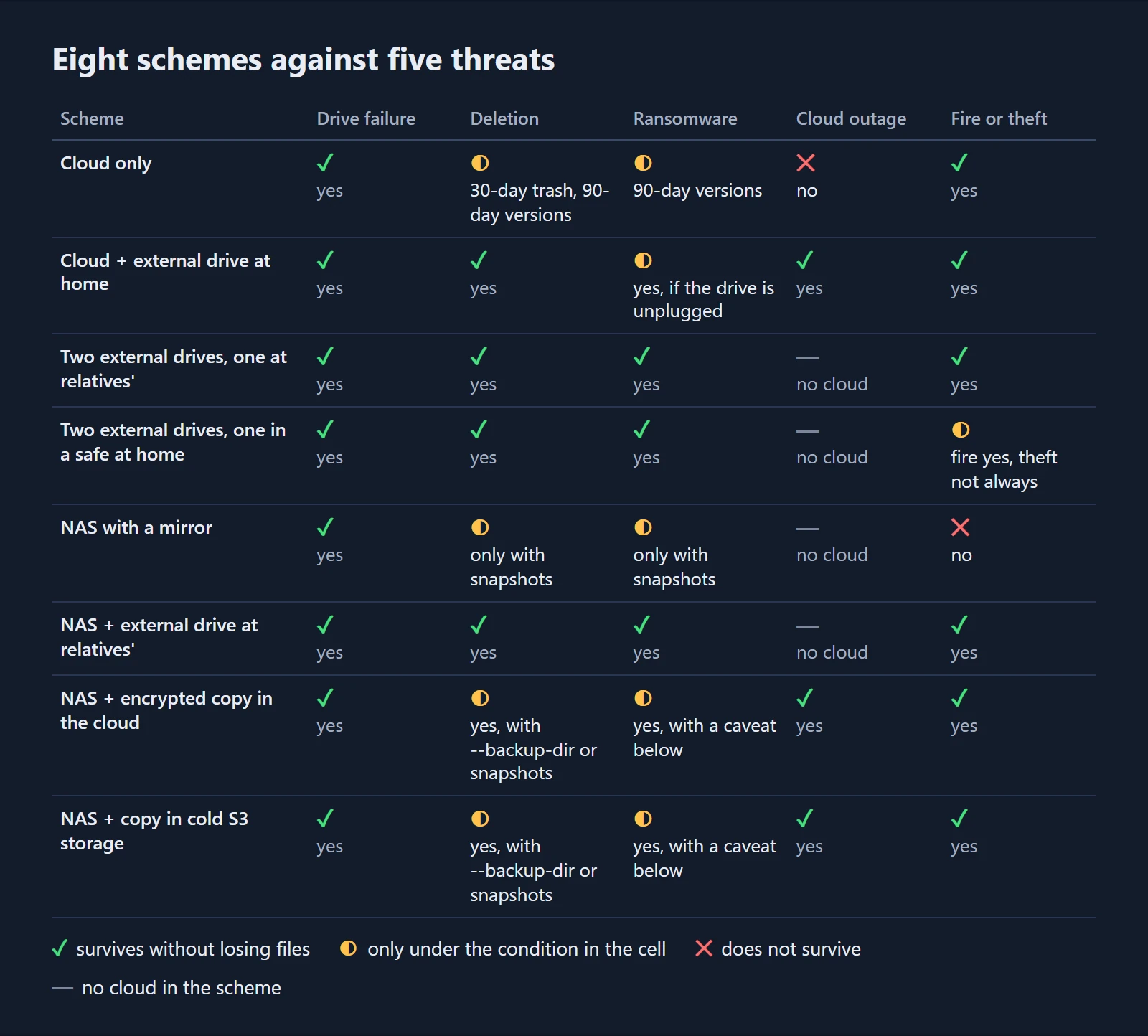
Instead of relatives, a workplace or any other location will do, as long as the copy is outside the home. The weak spot of the external drive schemes is that the copy on the drive is never newer than the last time it was connected. If you swap the drives at your relatives' once a month, a fire can cost you up to a month of work. Cloud schemes have a different weakness. Getting 3 TB back means downloading for almost three days. We cover the caveat for a NAS with a cloud copy in the section on rclone.
A fireproof safe for hard drives
You do not have to take the second drive to your relatives if you keep it at home in a fireproof safe. Then you can swap drives even every week, and a fire will cost you fewer recent files. But an ordinary home safe is designed for paper. In a safe of Russian class 60B, or 60P in European marking, the temperature inside may reach 170 °C during an hour of fire. The external drive used in our calculation must not heat above 65 °C even when switched off, according to the Toshiba Canvio Basics datasheet. Drives need class 60DIS: no more than 50 °C inside.
The price difference is easy to see at Diplomat, which makes both classes in the same body. Model 125 of class 60P costs 24,800 ₽, while 125DSE of class 60DIS costs 66,650 ₽. The chamber inside the second one is only 224 by 157 by 206 mm, but two external drives fit in it. Shop filters are not to be trusted here. One shop lists the VALBERG FRS-32 in its 60DIS section, although the manufacturer gives it class 60B. It is better to check the class against the certificate. A thief can carry off a small safe whole, so it is bolted to the floor or wall with anchors.
Cloud, drive and NAS prices in October 2026
Yandex 360 plans without the discount
The Yandex 360 discount usually applies only to the first year. Right now there is no such discount at all, instead you get three weeks for 1 ₽. So here we take the full annual price from the pricing page for all five years.
| Yandex 360 plan | Per month | Per year |
|---|---|---|
| Personal, 1 TB | 499 ₽ | 2,990 ₽ |
| Personal, 2 TB | 699 ₽ | 3,990 ₽ |
| Pro, 3 TB | 1,290 ₽ | 11,880 ₽ |
| Pro, 5 TB | 2,990 ₽ | 18,990 ₽ |
The most unpleasant part of the table is the step from 2 to 3 TB: the plan goes up from 3,990 to 11,880 ₽ a year. You get one and a half times more space, and the price triples. So it is worth separating what you cannot lose from what you can download again. If the important part fits in 2 TB, the cloud will cost 3,990 ₽ a year instead of 11,880 ₽.
Subscriptions keep getting more expensive, too. If the cloud goes up by 10% a year, over five years it comes out 22% more expensive. For 1 TB that is 18,254 ₽ instead of 14,950 ₽, for 3 TB 72,529 ₽ instead of 59,400 ₽. The cheapest schemes in the final calculation do not change because of this.
During the same days, Cloud Mail showed different prices to different visitors on its pricing page. In one variant a year of 4 TB cost 7,165 ₽, in another 7,490 ₽. At that price, the cloud schemes for 3 TB would become 23,575 or 21,950 ₽ cheaper over five years. We do not use it in the calculation, because there is no way to know in advance which price you will be shown.
Which drives to buy for a NAS: CMR or SMR
A mirror needs drives with conventional recording (CMR). Drives with shingled recording (SMR) slow down a lot under long continuous load, and after a drive is replaced the mirror takes much longer to rebuild. The catch is that SMR is also used in inexpensive desktop models. Back in 2020 Seagate confirmed that the 2, 4 and 8 TB Barracuda drives use SMR. WD Red Plus and Seagate IronWolf are suitable for a mirror, both series are CMR. It is better to buy them from different shops or a few weeks apart. Drives from the same batch behave alike and can fail almost at the same time, and a mirror survives the failure of only one.
A 4 TB drive for 1 TB of data may look like overkill. We checked the smaller size, and it turned out more expensive. On 15 October a 2 TB WD Red Plus cost 24,350 ₽ at Citilink, and a 4 TB one 23,490 ₽. That is why the mirror in both calculations is built from 4 TB drives. By 18 October the 2 TB model had dropped to 19,700 ₽. With it, the 1 TB NAS schemes would be 7,580 ₽ cheaper, and the three cheapest schemes would stay the same.
| Item | Price |
|---|---|
| WD Red Plus 2 TB (WD20EFPX), CMR | 24,350 ₽ |
| WD Red Plus 4 TB (WD40EFZZ), CMR | 23,490 ₽ |
| Seagate IronWolf 4 TB (ST4000VN006), CMR | 23,990 ₽ |
| External drive 2 TB | 12,990 ₽ |
| External drive 4 TB | 18,990 ₽ |
| Synology DS223j, two bays | 24,700 ₽ |
Citilink prices as of 15 October 2026. WD Elements, Seagate Expansion and Toshiba Canvio external drives of the same capacity cost the same. We take prices for new drives in one shop so that anyone can check them. Used drives and drives from marketplaces can be cheaper, and then all the schemes with drives get cheaper too.
How much power does a NAS use
As the baseline we took a two-bay Synology DS223j. It is the first model in the Synology entry-level series with Btrfs and snapshots, and it costs 24,700 ₽. According to its datasheet, together with the drives it draws 16.31 W in operation and 4 W when the drives are asleep. At the Moscow rate from 1 October 2026, 8.90 ₽ per kWh, electricity for five years will cost from 1,559 to 6,358 ₽. We used the upper bound in the calculation. A self-built server can cost less than this box, but it needs the same drives and the same off-site copy.
Cold S3 storage for a backup copy
You can also put the copy into object storage. The ice class of Yandex Object Storage costs 0.00088 ₽ per gigabyte per hour, which is about 7,900 ₽ a year per terabyte. Yandex Disk with 1 TB costs 2,990 ₽ a year, that is 2.6 times cheaper. On top of that, if you delete a file before 12 months are up, you still pay for the rest of the term.
What is cheaper over five years: cloud, NAS or external drives
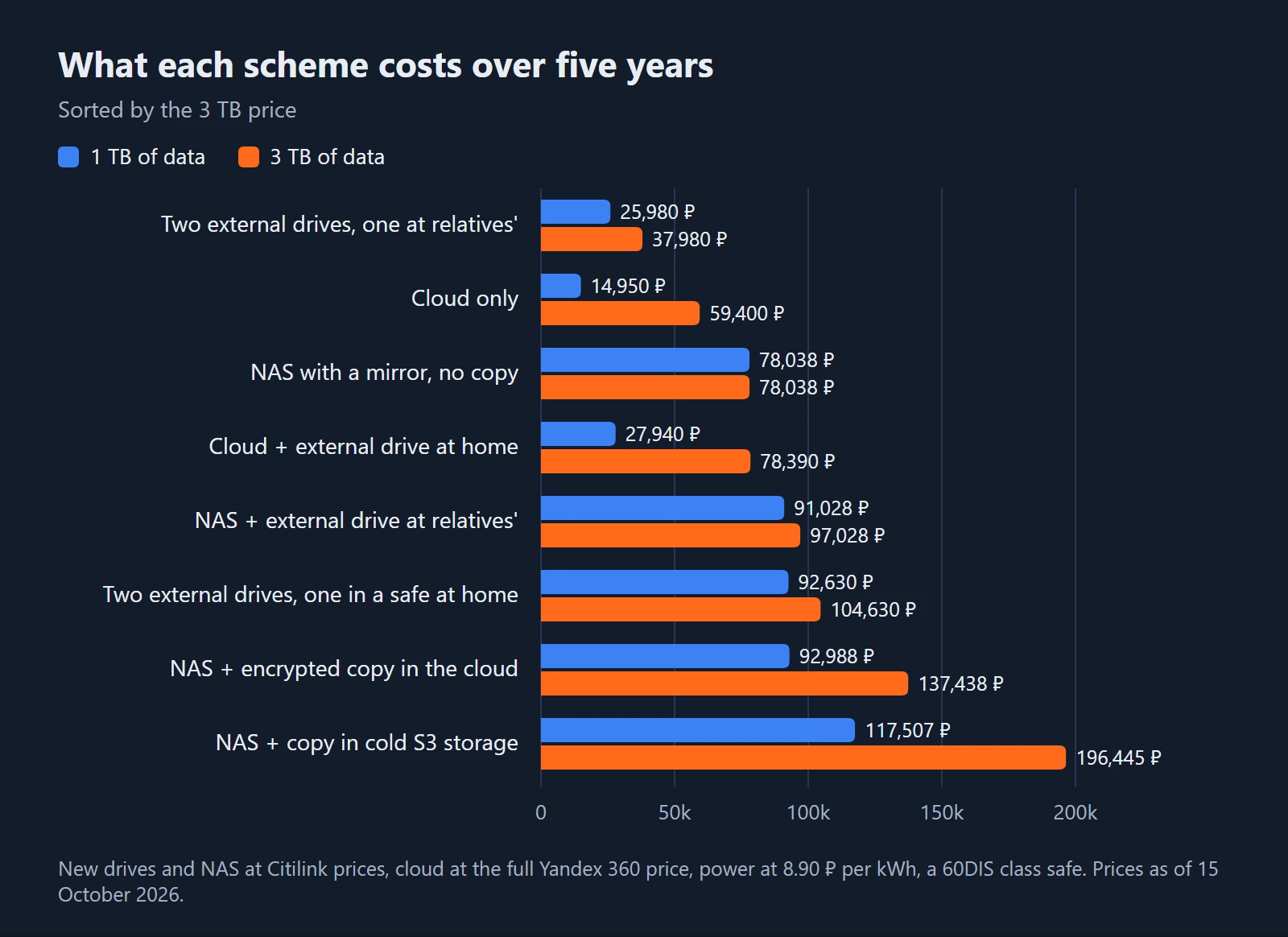
Now everything together. The mirror in both cases is built from two 4 TB WD Red Plus drives. The external drives are 2 and 4 TB, and the cloud is counted at the annual Yandex 360 price without discounts.
| Scheme | 1 TB | 3 TB |
|---|---|---|
| Cloud only | 14,950 ₽ | 59,400 ₽ |
| Cloud + external drive at home | 27,940 ₽ | 78,390 ₽ |
| Two external drives, one at relatives' | 25,980 ₽ | 37,980 ₽ |
| Two external drives, one in a safe at home | 92,630 ₽ | 104,630 ₽ |
| NAS with a mirror, no copy | 78,038 ₽ | 78,038 ₽ |
| NAS + external drive at relatives' | 91,028 ₽ | 97,028 ₽ |
| NAS + encrypted copy in the cloud | 92,988 ₽ | 137,438 ₽ |
| NAS + copy in cold S3 storage | 117,507 ₽ | 196,445 ₽ |
For 1 TB, the price of the NAS decides everything. With two drives it costs 71,680 ₽ before the first electricity bill. The cloud plus a drive in a cupboard cover all five threats for 27,940 ₽. Two external drives come out slightly cheaper, 25,980 ₽, but you will have to take the second one to your relatives.
For 3 TB, the jump in the cloud price changes the picture. The cloud alone already costs 59,400 ₽, with an external drive 78,390 ₽. A NAS with a mirror and no second copy costs almost the same, 78,038 ₽, and still does not protect against fire. It will protect against deletion only with snapshots. The cheapest here is a pair of external drives that swap places: 37,980 ₽ over five years.
A media safe saves you the trips, but costs more than both drives together. The scheme with it comes out more expensive than a NAS with a drive at relatives', for both 1 TB and 3 TB.
The copy in cold S3 turned out to be the most expensive in both columns. For a home archive of this size, storage there costs twice as much as a regular cloud or more.
We did not include drive replacement in the total. The warranty on WD Red Plus and IronWolf is three years, and the probability that one of two drives fails within five years is about 13%. A replacement would add another 23,490 ₽ to the NAS schemes.
There is also a correction the other way. After five years the drives do not disappear. In the calculation they are worth nothing by then, although a healthy drive will keep working. So the schemes with drives are actually a little cheaper than in the table.
Encrypted NAS backup to the cloud with rclone crypt
If you already have a NAS, you can skip the calculation above, because the only expense is the off-site copy. Without trips to relatives, the cheapest option is to send the archive to the cloud in encrypted form.
rclone with the crypt module does the job. It encrypts file contents with XSalsa20 and Poly1305, encrypts file names with AES-256 in EME mode, and the cloud shows only random names. File size and modification time are not hidden. The overhead is almost zero. A 1 MiB file takes 1,048,864 bytes in the cloud. rclone works with Yandex Disk and Cloud Mail out of the box. The program is available for Windows, macOS and Linux, and on a NAS it runs over SSH or in a Docker container. There is no ban on encrypted files in the Yandex Disk terms of use, we checked the version of 28 September 2026.
Instead of rclone crypt, restic or borg will do: they keep versions and support deduplication. restic sends the copy to the cloud through the same rclone. borg writes the copy to a disk or to a server that also runs borg, so you would have to move it to Yandex Disk separately. We stayed with rclone crypt because the scheme is simpler: one tool, and each file sits separately in the cloud.
We tested all the commands below on a test bench: rclone 1.75.0, with a local folder instead of the cloud.
First, rclone config creates two remotes: a regular one for Yandex Disk and an encrypted one on top of a folder in it. In the configuration file it looks like this:
[yadisk]
type = yandex
token = {"access_token":"...","expiry":"..."}

[secret]
type = crypt
remote = yadisk:backup
password = ...
password2 = ...
Nightly backup with rclone sync
rclone sync /volume1/archive secret:current \
  --backup-dir secret:old/$(date +%F) \
  --max-delete 500
sync makes the current folder an exact copy of the archive. Everything that would be deleted or overwritten in the process moves to the old folder with the date in its name. On the test bench we deleted a contract, appended a line to a note and overwrote a photo with random bytes, the way ransomware would. After the next run, all three previous versions ended up in old and were restored byte for byte.
--backup-dir has two conditions from the documentation: the folder must be on the same remote as current, and not inside it. If you break either of them, rclone refuses to start, we checked. The cloud also has to be able to move files on its side. Yandex Disk and Cloud Mail can do this, as the rclone source code shows.
--max-delete guards against an empty folder, when a drive did not connect or the NAS did not mount the volume. On the test bench we ran sync from an empty folder with a limit of 2. rclone stopped with an error, but before that it managed to move two files out of four to old, because moves count towards the limit too. It limits the damage, but does not cancel it. If the folder does not exist at all, rclone refuses to work and touches nothing. Set the limit higher than what you usually delete in a day, and much lower than the number of files in the archive.
How to verify an encrypted copy
rclone cryptcheck /volume1/archive secret:currentHere is the first surprise. A regular rclone check is useless for crypt: the cloud stores checksums of the encrypted files, and they cannot be compared with the originals. On the test bench we corrupted one byte in an encrypted file without changing its size. rclone check printed "No common hash found", compared only the sizes and returned exit code 0, that is, "all good". cryptcheck found the mismatch, and rclone could no longer restore that file: the error was failed to authenticate decrypted block.
Restoring files and cleaning up old versions
rclone copy secret:current /volume1/restore
rclone copy secret:old/2026-10-15 /volume1/restore-old
rclone purge secret:old/2026-07-15
The last line deletes old versions, and here is the second surprise. The obvious choice is rclone delete secret:old --min-age 90d, but rclone looks at the file's modification time, and it is preserved when the file is moved to old. On the test bench the contract was last changed in March. It was deleted only yesterday, yet --min-age 90d already considered it old. Such a cleanup will wipe the recently deleted files that old was created for. So it is safer to delete old versions as whole folders, by the date in the name.
The rclone crypt password and the weak spot of the scheme
Without the crypt password you have no copy. It cannot be changed for an existing remote, the old files can only be decrypted with the old password. With a different password, rclone on the test bench did not see a single file. Write the password and the salt, that is, the second password, down on paper and keep them away from the NAS.
In rclone.conf the password is only lightly obscured, and rclone reveal shows it in full. The config can be encrypted with rclone config encryption set. Then the nightly job needs the config password, and it ends up somewhere on the NAS again.
Hence the caveat from the threat table. The cloud token sits on the NAS. By default rclone deletes files from Yandex Disk into the trash, but rclone cleanup empties that trash. If ransomware corrupts files only on the NAS itself, the nightly sync moves their previous versions to old, and they survive. But an intruder who got access to the NAS and is looking for copies will wipe both the cloud and the trash. Only a drive disconnected from the network protects against that.
Encrypted copy with Synology Cloud Sync
Synology owners can simply use the built-in Cloud Sync, it supports Yandex Disk. NAS-side encryption is switched on with a checkbox when you create a task. The help page lists three limitations: encryption cannot be turned off later, the password cannot be changed, and decrypting without the NAS requires a separate program, Synology Cloud Sync Decryption Tool. More important is something else. By default Cloud Sync syncs in both directions, and a file deleted at home disappears from the cloud too. For a backup, choose one-way sync in the task, uploading local changes only, and prevent files in the cloud from being deleted when they are removed from the NAS.
How long a restore from the cloud takes
At 100 Mbit/s, 1 TB downloads in about 22 hours, and 3 TB in 67 hours, almost three days. The first upload of the copy to the cloud takes as long if your upload speed is the same. Speed limits on the cloud side are not included here, so in practice it may take longer. From a drive at your relatives', the same 3 TB come back in the time it takes to travel and copy.
We do not count a copy that nothing has ever been restored from as a copy. It is worth checking the cloud copy with cryptcheck once a quarter and downloading one whole folder from it. An unencrypted copy on an external drive is checked by the same rclone: rclone check compares the checksums of all files with the archive. On the test bench it found a file in which we changed one byte without touching the size or date. Each time you connect the drive, it is also worth looking at SMART, the drive's self-monitoring log, because a drive in a drawer ages too.
What the calculation leaves out
We did not count LTO tapes and optical discs, because they need a separate drive, and 3 TB is some thirty 100 GB Blu-ray discs. Foreign clouds such as Google One were also left out: they do not accept cards from Russian banks, so you would have to pay through intermediaries.
Summary: where to keep 1 and 3 TB
For 1 TB, the most convenient option is the cloud plus an external drive at home: 27,940 ₽ over five years, all five threats covered. You pay for it with discipline. The drive has to be connected and the copy on it updated at least once a month.
For 3 TB the cloud gets three times more expensive, and the cheapest option is two external drives, one at home and one at your relatives': 37,980 ₽. This takes even more discipline, because the copy at your relatives' is only updated when you visit.
A NAS makes sense when you need it as working storage: fast access from the home network, family photos in Immich, several users, 5 TB or more. But on its own it holds one copy on two drives. Without an off-site copy, a NAS will not survive a fire or theft. With a copy it costs from 91 to 137 thousand rubles over five years. Two copies in different places come out cheaper than one copy on two drives.
The caveats are the same as along the way. Prices are as of 15 October 2026, and the NAS electricity is taken at the upper bound. The Backblaze statistics were collected in server conditions, and Cloud Mail prices depend on the page variant.
If you already have a second copy, think back to when you last restored anything from it.